

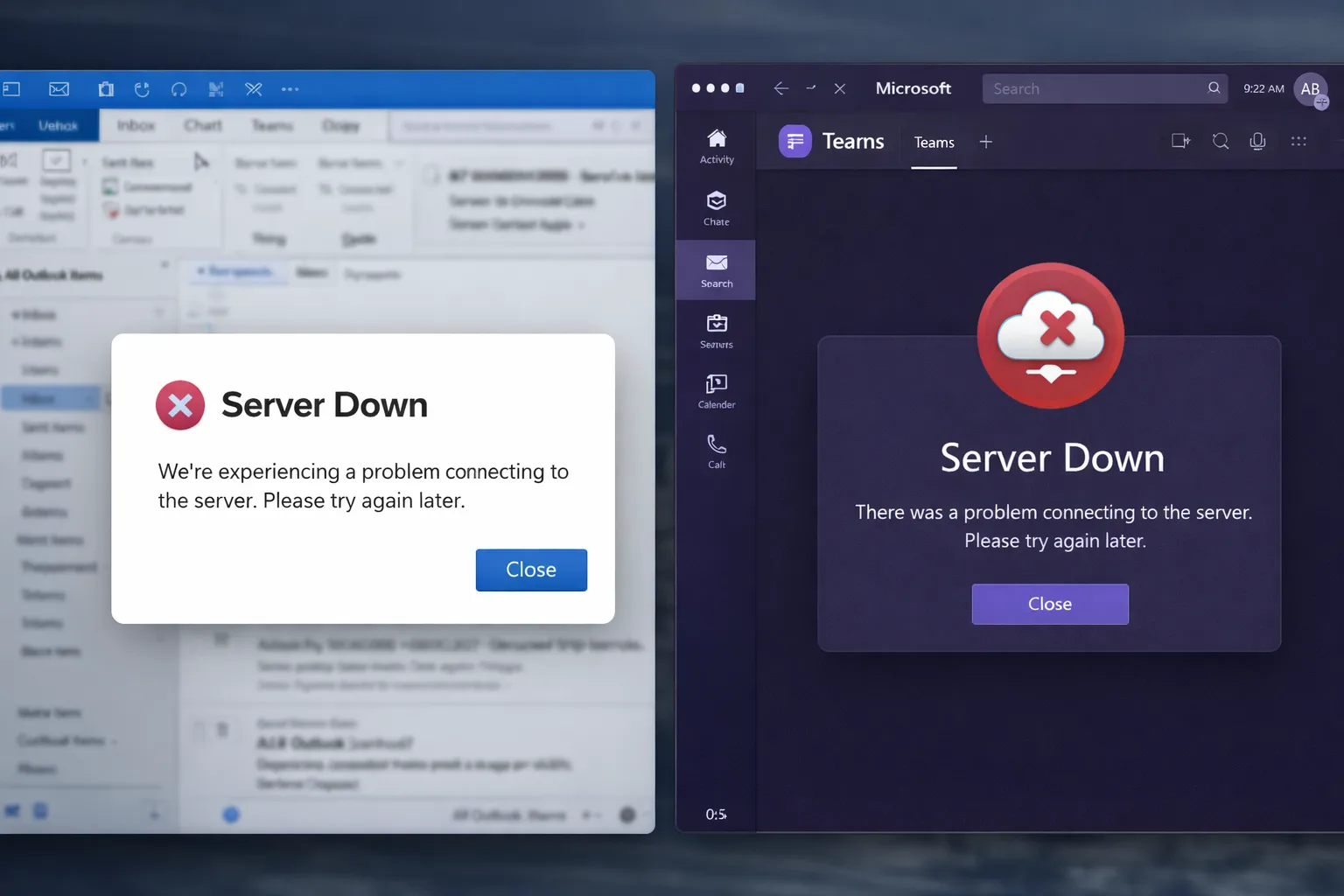
On January 22, 2026, the Microsoft 365 collapse completely paralyzed operations for thousands of companies worldwide. For nearly 8 hours, millions of users sat helpless facing error messages, with no access to email, no Teams, no OneDrive, nothing. Imagine this: you’re running an auto repair shop, a client urgently sends you car documents for diagnostic, but you can’t open Outlook. Or you have an IT project with a 5 PM deadline, but SharePoint refuses to load. Or worse – you run a financial firm and can’t communicate with clients after lunch.
That’s exactly what happened on January 22. Microsoft, the giant we believed invincible, collapsed spectacularly. North American infrastructure simply “stopped processing traffic as expected,” according to Microsoft. In plain English: servers buckled under their own weight. In this article, I’ll explain exactly what happened, why it’s so serious, and most importantly – what YOU do so you don’t get stuck next time the cloud decides to take a vacation.
What exactly happened on January 22, 2026?
The Microsoft 365 collapse began around 19:40 UTC when first users reported they couldn’t access services. Within minutes, chaos spread:
Disaster Timeline:
19:40 UTC – Microsoft officially acknowledges the problem: “We’re investigating a potential issue impacting multiple Microsoft 365 services”
20:00 UTC – Downdetector registers over 16,000 reports from furious users. Affected services:
- Outlook – no email access (error 451 4.3.2)
- Microsoft Teams – meetings abruptly interrupted
- OneDrive & SharePoint – documents locked
- Microsoft Defender – admins can’t access security dashboard
- Microsoft Store – completely unavailable
21:00 UTC – Microsoft identifies cause: “A portion of service infrastructure in North America is not processing traffic as expected.” Translation: servers crashed.
22:00-02:00 UTC – Microsoft teams try redirecting traffic to other servers. First attempt FAILS and makes situation worse – creates new traffic imbalances.
02:00-04:00 UTC – Partial recovery. Some users back online, others still blocked.
04:23 UTC (January 23, early morning) – Microsoft officially declares: “We’ve confirmed that impact has been resolved.” But many users contest: “Still not working for us!”
Real impact of Microsoft 365 collapse:
A financial sector user screamed on Twitter: “You got to be kidding me! We haven’t gotten emails since 1:30 pm and we run a financial company with clients!!”
Another, more ironic: “The cloud decided to take a snow day.”
Real numbers:
- 16,000 Downdetector reports at peak
- 8 hours total outage duration (some users even longer)
- Millions users affected globally
- Zero data lost (fortunately)
- Millions $ lost in productivity
Why did Microsoft 365 collapse? Technical cause
Microsoft gave a rather vague explanation: “infrastructure not processing traffic correctly in North America.” But what does that EXACTLY mean?
Technical analysis (for the curious):
Primary cause: Network configuration failure at Azure level. Most likely, an automated BGP (Border Gateway Protocol) routing configuration update introduced errors that overloaded certain server nodes.
Domino effect:
- North American servers receive too much traffic
- Load balancers fail to redistribute correctly
- Exchange Online (Outlook) falls first – most latency-sensitive
- Teams and SharePoint follow immediately
- Defender and Purview lose backend connection
The irony: Microsoft’s first “fix” attempt made it worse. They tried redirecting traffic but created NEW imbalances. It’s like trying to stop a water leak and breaking another pipe.
Systemic problem: Microsoft 365 runs on Azure, which is an ENORMOUS and COMPLEX network of interconnected servers. When one network segment fails, the effect instantly propagates to millions of users because everything’s connected.
Microsoft’s problem history: Not the first time!
The Microsoft 365 collapse of January 2026 is NOT an isolated incident. It’s part of a worrying pattern:
Recent major incidents:
July 2024 – CrowdStrike Disaster
- Defective CrowdStrike update crashed Windows globally
- Planes grounded, hospitals in chaos, banks offline
- Worst tech incident in history
July 2024 – Xbox Live + Office 365
- Integration problems blocked both services
- Thousands of gamers and corporate users affected
2020 – Outlook & Teams Down
- Authentication issues for hours
- Millions of corporate workers blocked at home (pandemic)
January 2026 (before major outage):
- January 1 – Excel Stock Data API dead (expired New Year certificate!)
- January 21 – Service degradation (day before major outage)
- January 22 – BOOM – total collapse
Pattern: Microsoft has on average 3-5 major incidents PER YEAR. For a “professional cloud service,” it’s UNACCEPTABLE.
Why is 100% cloud dependency so dangerous?
Here comes the part that interests you, small business owner or IT/auto freelancer:
Scenario 1: Auto Repair Shop
Client comes with car, urgent problem. You say: “Send me VIN and documents via email, I’ll check on CarVertical and tell you what’s wrong.”
Problem: Outlook blocked. Client leaves angry to competition.
Scenario 2: IT/Auto Freelancer
You have a 5 PM deadline for important technical report. Everything you worked on is in OneDrive. 3 PM – Microsoft 365 collapse. You can’t access ANYTHING.
Problem: You lose client or pay penalties.
Scenario 3: Small Company
All internal communication through Teams. Documents in SharePoint. Emails in Outlook. Backup? “It’s in the cloud, it’s safe!”
Problem: 8 hours ZERO productivity. Employees sit idle.
Harsh reality:
When Microsoft 365 crashes, YOU suffer, not them. Microsoft apologizes on Twitter, but:
- ❌ You don’t get money back
- ❌ They don’t compensate your losses
- ❌ They don’t guarantee it won’t repeat
Microsoft 365 SLA (Service Level Agreement) guarantees 99.9% uptime = 43 minutes monthly downtime allowed. The January 22 outage was 8 hours = equivalent of 11 MONTHS allowed downtime, consumed in a single day.
How to protect yourself from the next Microsoft 365 collapse?
You can’t prevent Microsoft from crashing, but you can PREPARE:
1. Mandatory Local Backup
MISTAKE: “It’s in the cloud, it’s safe, no backup needed.” REALITY: Cloud CRASHES. Servers DIE. Configurations BREAK.
Practical solutions:
For Email:
- Outlook Desktop with local PST (automatic backup)
- Thunderbird with ImportExportTools extension
- IMAP sync on desktop + mobile
For Documents:
- OneDrive Desktop Client – keeps local copies
- Syncthing – automatic cross-platform sync (free, open-source)
- Dropbox/Google Drive as SECONDARY backup (not primary!)
For critical business data:
- Local NAS (Synology, QNAP) with automatic sync
- External hard drive with weekly backup
- 3-2-1 rule: 3 copies, 2 different media, 1 offsite
2. Diversify Cloud Providers
DON’T put all eggs in one basket:
Ideal setup for small business:
- Primary email: Microsoft 365
- Backup email: Gmail / Zoho Mail (free for 5 users)
- Storage: OneDrive (primary) + Google Drive (backup)
- Communication: Teams (primary) + Slack / Discord (backup)
- Critical documents: Local copies + dual cloud
Costs extra? Yes, a bit. Worth it when Microsoft crashes? ABSOLUTELY.
3. Contingency Plan
Make a document (on PAPER or local, not in cloud!) with:
What to do when Microsoft 365 crashes:
- Alternative email for urgent communication (Gmail, Yahoo)
- Phone/WhatsApp for critical clients
- Access to local documents/backup
- Timeline: When to call clients to notify delays
Essential info offline:
- Client list with phones (local Excel)
- Critical procedures (local PDF)
- Passwords (LOCAL password manager: KeePass, local Bitwarden)
4. Proactive Monitoring
Free tools:
- Downdetector.com – check Microsoft 365 status real-time
- Microsoft Service Health – official status (when page works!)
- Twitter @MSFT365Status – real-time updates
Automation:
5. Client Education
Explain to clients BEFORE problem appears:
“We communicate via email, but if I don’t respond in 2 hours, call my mobile at [number]. Sometimes Microsoft services have technical issues.”
Educated client = client who doesn’t leave angry to competition.
Lessons learned from Microsoft 365 collapse
For individual users:
- ✅ Local backup is mandatory, not optional
- ✅ Cloud is NOT “set and forget”
- ✅ Plan B saves businesses
For businesses:
- ✅ 99.9% SLA doesn’t mean NEVER problems
- ✅ Diversification reduces risk
- ✅ Employee training for crisis scenarios
For Microsoft (if they’d listen):
- ❌ System complexity is too high
- ❌ Update testing is insufficient
- ❌ Crisis communication is vague
Conclusion: Stop being naive about the cloud
The Microsoft 365 collapse of January 22, 2026 was a brutal wake-up call for everyone who believed “the cloud is invincible.” Microsoft, with all their power and resources, kept millions of users BLOCKED for 8 hours. No email. No Teams. No document access.
The moral of the story? Cloud computing is fantastic, but fragile. It’s like driving a state-of-the-art car with 500 electronic sensors – when it works, it’s brilliant. When ONE sensor fails, the car refuses to start.
What to do NOW:
- Configure local backup for email and documents (today, not tomorrow!)
- Test backup access (don’t discover in crisis that it doesn’t work)
- Create alternative email for emergencies
- Teach clients to contact you other than email
- Document emergency procedure (on PAPER!)
Next time Microsoft crashes (and it will crash again, be sure), you’ll smile and switch to plan B, while others curse on Twitter.
Were you affected by the January 22 Microsoft 365 collapse? How did you solve it? Write in comments – let’s help the community learn from your experiences!
✍️ Author: Bejenaru Alexandru Ionut – [email protected]
🔗 Internal link: https://diagnozabam.ro/sfaturi

