
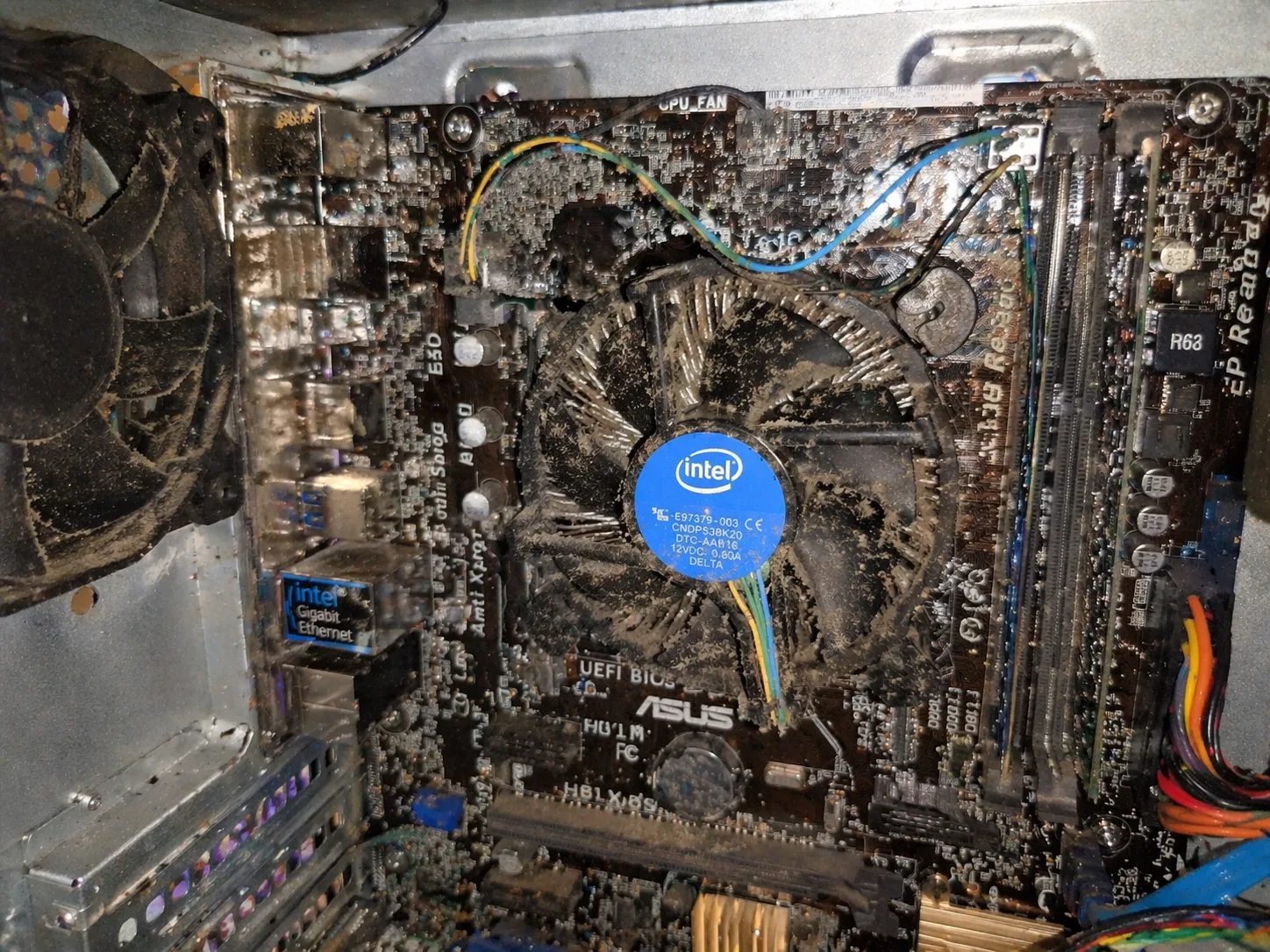
What Does “PC Overheating” Mean
The PC overheating issue occurs when internal components exceed safe temperature limits, leading to performance drops, instability, or automatic shutdowns.
Overheating affects:
- CPU
- GPU
- motherboard components (VRM)
- storage (SSD in some cases)
If not addressed, it can cause:
- system crashes
- random restarts
- permanent hardware damage
Why Overheating Is Dangerous
Modern systems include thermal protection, but constant overheating leads to:
- reduced performance (thermal throttling)
- shorter component lifespan
- sudden shutdowns under load
In extreme cases, overheating can permanently damage the CPU or GPU.
Common Causes of PC Overheating
1. Dust Buildup
The most common cause.
Dust blocks airflow and covers:
- fans
- heatsinks
- vents
Result:
- trapped heat
- rising temperatures
2. Poor Airflow
If air cannot circulate properly:
- hot air stays inside the case
Causes:
- bad cable management
- insufficient fans
- closed or restricted case design
3. Dried Thermal Paste
Thermal paste transfers heat from CPU/GPU to cooler.
Over time:
- it dries out
- loses efficiency
Result:
- higher temperatures
- overheating under load
4. Faulty or Weak Cooling System
Problems include:
- broken fans
- low-quality coolers
- improper mounting
5. High Ambient Temperature
Room temperature directly affects cooling.
Hot environments = higher internal temps.
6. Overclocking
Increased frequency = more heat.
Without proper cooling:
- system overheats quickly
7. GPU Overheating
Graphics cards generate significant heat.
Issues:
- clogged fans
- worn thermal pads
- heavy gaming load
Signs Your PC Is Overheating
- loud fans running constantly
- sudden FPS drops in games
- system freezes or crashes
- random restarts
- hot air from case
- CPU/GPU temps above safe limits
Safe Temperature Ranges
Typical values:
- CPU idle: 30–50°C
- CPU load: 70–85°C
- GPU load: 65–85°C
Above these values:
- overheating risk increases
Step-by-Step Fix for PC Overheating
Step 1: Clean Dust
- open case
- use compressed air
- clean fans and heatsinks
This alone can reduce temps significantly.
Step 2: Improve Airflow
- organize cables
- add intake/exhaust fans
- ensure proper airflow direction
Step 3: Replace Thermal Paste
- remove cooler
- clean old paste
- apply new thermal paste
This can reduce CPU temps by 10–20°C.
Step 4: Check Fans
- ensure all fans spin
- replace faulty fans
- verify fan speeds
Step 5: Upgrade Cooling
- install better CPU cooler
- consider liquid cooling (AIO)
- upgrade case airflow
Step 6: Reduce Load / Disable Overclock
- remove overclock
- lower CPU/GPU stress
Step 7: Monitor Temperatures
Use software to track:
- CPU temps
- GPU temps
Advanced Solutions
Replace Case
Better airflow cases improve cooling dramatically.
Upgrade PSU
A failing PSU can increase heat indirectly.
GPU Maintenance
- clean GPU fans
- replace thermal pads (advanced)
Signs of Serious Damage
- system shuts down instantly under load
- extreme temperatures (>90°C)
- persistent overheating after cleaning
May indicate:
- failing CPU/GPU
- damaged cooling system
What NOT to Do
Avoid:
- blocking airflow
- ignoring dust buildup
- using poor thermal paste
- running high overclock without cooling
Conclusion
The PC overheating issue is one of the most common and preventable problems.
Most cases are fixed by:
- cleaning dust
- improving airflow
- replacing thermal paste
Proper cooling ensures long system life and stable performance.
✍️ Author: Bejenaru Alexandru Ionut – [email protected]

Recommendation: Looking for a professional bi-directional diagnostic tool with full system coverage? Use code DIAGNOZABAM for 10% off.
Transparency note: Affiliate link. Purchasing through it costs you nothing extra. View Thinkcar Deal →