
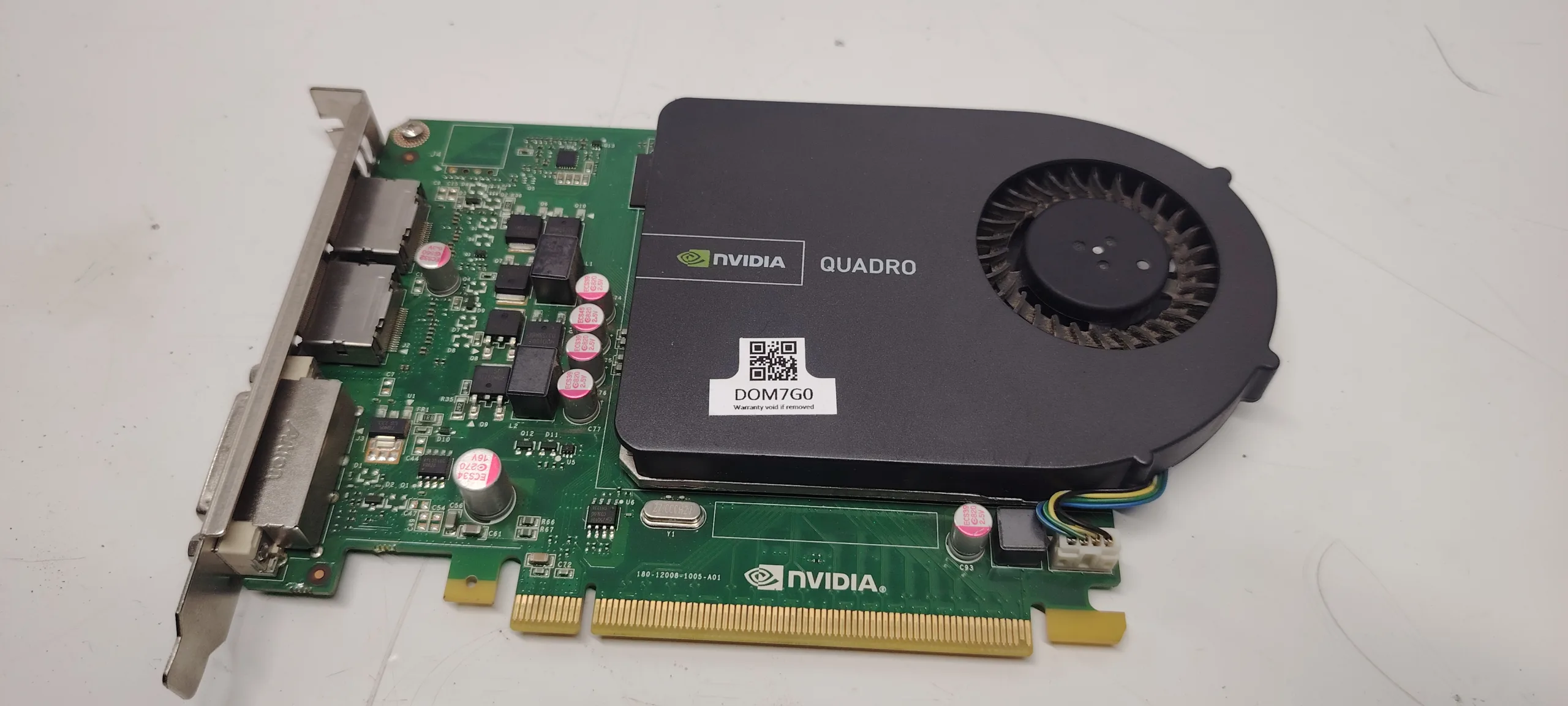
What Does “GPU Overheating” Mean
The GPU overheating issue occurs when the graphics card exceeds safe operating temperatures, leading to performance loss, instability, or system crashes.
This typically happens during:
- gaming
- video rendering
- high GPU workloads
A GPU that overheats may:
- throttle performance
- freeze the system
- cause black screens
- trigger restarts
Why GPU Overheating Is a Problem
Modern GPUs are powerful but generate significant heat. If cooling is insufficient, temperatures rise quickly.
Consequences include:
- FPS drops (thermal throttling)
- system instability
- reduced GPU lifespan
- permanent hardware damage in extreme cases
Common Causes of GPU Overheating
1. Dust Accumulation
The most common cause.
Dust blocks:
- GPU fans
- heatsink fins
Result:
- poor heat dissipation
- rising temperatures
2. Worn Thermal Paste or Pads
Over time:
- thermal paste dries
- thermal pads degrade
This reduces heat transfer efficiency.
3. Poor Case Airflow
Even a good GPU will overheat if:
- hot air is trapped inside case
- airflow is restricted
4. High Ambient Temperature
Warm room = higher GPU temps.
5. Fan Failure or Low Speed
If GPU fans:
- stop working
- spin slowly
cooling becomes ineffective.
6. Overclocking
Increased GPU frequency generates more heat.
Without proper cooling:
- overheating occurs quickly
7. Heavy Load (Gaming / Rendering)
High GPU usage naturally increases temperature.
Signs of GPU Overheating
- loud GPU fans
- FPS drops in games
- screen stuttering
- black screen crashes
- visual artifacts (glitches)
- system restarts under load
Safe GPU Temperature Range
Typical values:
- Idle: 30–50°C
- Gaming: 65–85°C
- Above 90°C: overheating risk
Step-by-Step Fix for GPU Overheating
Step 1: Clean the GPU
- remove dust using compressed air
- clean fans and heatsink
Step 2: Improve Case Airflow
- add intake/exhaust fans
- improve cable management
- ensure proper airflow direction
Step 3: Check GPU Fans
- verify fans spin correctly
- replace faulty fans
Step 4: Replace Thermal Paste
Advanced but effective:
- disassemble GPU
- clean old paste
- apply new thermal paste
Can reduce temps significantly.
Step 5: Replace Thermal Pads (Advanced)
Needed if:
- memory chips overheat
- GPU is older
Step 6: Reduce GPU Load
- lower graphics settings
- reduce resolution
- limit FPS
Step 7: Undervolt GPU
Advanced method:
- reduce voltage
- maintain performance
- lower heat output
Advanced Solutions
Upgrade Case Cooling
Better airflow = lower GPU temps.
Install Better GPU Cooling
Aftermarket cooling solutions exist but are rare.
Replace GPU (Last Resort)
If overheating persists:
- internal damage may exist
Signs of Serious GPU Damage
- overheating even after cleaning
- artifacts on screen
- crashes under light load
- fans working but temps high
What NOT to Do
Avoid:
- ignoring high temps
- blocking airflow
- overclocking without cooling
- opening GPU without knowledge
Conclusion
The GPU overheating issue is common, especially in gaming systems.
Most cases are fixed by:
- cleaning dust
- improving airflow
- replacing thermal paste
Maintaining proper cooling ensures stable performance and longer GPU lifespan.
✍️ Author: Bejenaru Alexandru Ionut – [email protected]

Recommendation: Looking for a professional bi-directional diagnostic tool with full system coverage? Use code DIAGNOZABAM for 10% off.
Transparency note: Affiliate link. Purchasing through it costs you nothing extra. View Thinkcar Deal →