
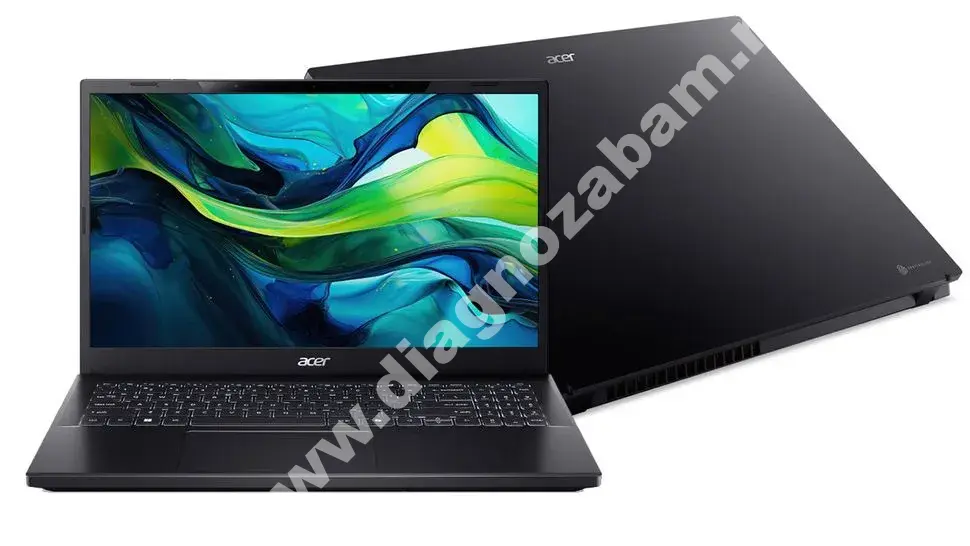
What Does “Laptop Overheating” Mean
The laptop overheating issue occurs when internal components exceed safe temperature limits due to limited cooling capacity.
Unlike desktop PCs, laptops have:
- compact design
- restricted airflow
- smaller cooling systems
Because of this, they are more prone to overheating, especially during:
- gaming
- video editing
- multitasking
- long usage sessions
Why Overheating Is More Common on Laptops
Laptops are designed for portability, not maximum cooling.
Limitations include:
- small fans
- thin heatsinks
- limited airflow vents
This makes heat buildup much faster compared to desktop systems.
Common Causes of Laptop Overheating
1. Dust Blocking Air Vents
Dust accumulates inside:
- cooling fans
- air vents
- heatsink fins
Result:
- restricted airflow
- trapped heat
2. Blocked Airflow
Using the laptop on:
- bed
- sofa
- soft surfaces
blocks airflow vents.
3. Dried Thermal Paste
Over time:
- thermal paste loses efficiency
This reduces heat transfer from CPU/GPU.
4. High CPU or GPU Usage
Heavy tasks like:
- gaming
- rendering
- multitasking
increase heat significantly.
5. Faulty Cooling Fan
If the fan:
- spins slowly
- stops working
cooling becomes ineffective.
6. High Ambient Temperature
Hot environment increases internal temperatures.
7. Background Processes
Unnecessary apps can:
- increase CPU usage
- generate extra heat
Signs Your Laptop Is Overheating
- loud fan noise
- laptop feels very hot
- performance drops
- freezing or lag
- sudden shutdowns
- battery drains faster
Safe Temperature Range
Typical values:
- Idle: 35–55°C
- Load: 70–90°C
Above 90°C:
- overheating risk
- system instability
Step-by-Step Fix for Laptop Overheating
Step 1: Clean Air Vents
- use compressed air
- remove dust from vents
Step 2: Use Laptop on Hard Surface
Avoid:
- beds
- sofas
Use:
- desk or cooling pad
Step 3: Use Cooling Pad
External cooling pads:
- improve airflow
- reduce temperatures
Step 4: Close Background Apps
- reduce CPU load
- free system resources
Step 5: Replace Thermal Paste (Advanced)
- requires disassembly
- improves heat transfer
Step 6: Check Cooling Fan
- listen for unusual noise
- replace if faulty
Step 7: Reduce Load
- lower game settings
- avoid heavy multitasking
Advanced Solutions
Undervolt CPU
- reduces heat
- improves efficiency
Clean Internal Components
If comfortable:
BIOS Update
May improve thermal management.
Signs of Serious Damage
- shutdowns even at low usage
- extreme heat constantly
- no fan activity
- system freezes frequently
What NOT to Do
Avoid:
- blocking airflow
- using laptop on soft surfaces
- ignoring high temperatures
- forcing maximum performance constantly
Conclusion
The laptop overheating issue is very common but preventable.
Most cases are fixed by:
- cleaning dust
- improving airflow
- reducing load
Proper cooling ensures longer lifespan and stable performance.
✍️ Author: Bejenaru Alexandru Ionut – [email protected]
🔗 Internal link: https://diagnozabam.ro/sfaturi

Recommendation: Looking for a professional bi-directional diagnostic tool with full system coverage? Use code DIAGNOZABAM for 10% off.
Transparency note: This link is promotional (affiliate). Purchasing through it costs you nothing extra and helps support our content. View Thinkcar Deal →
