
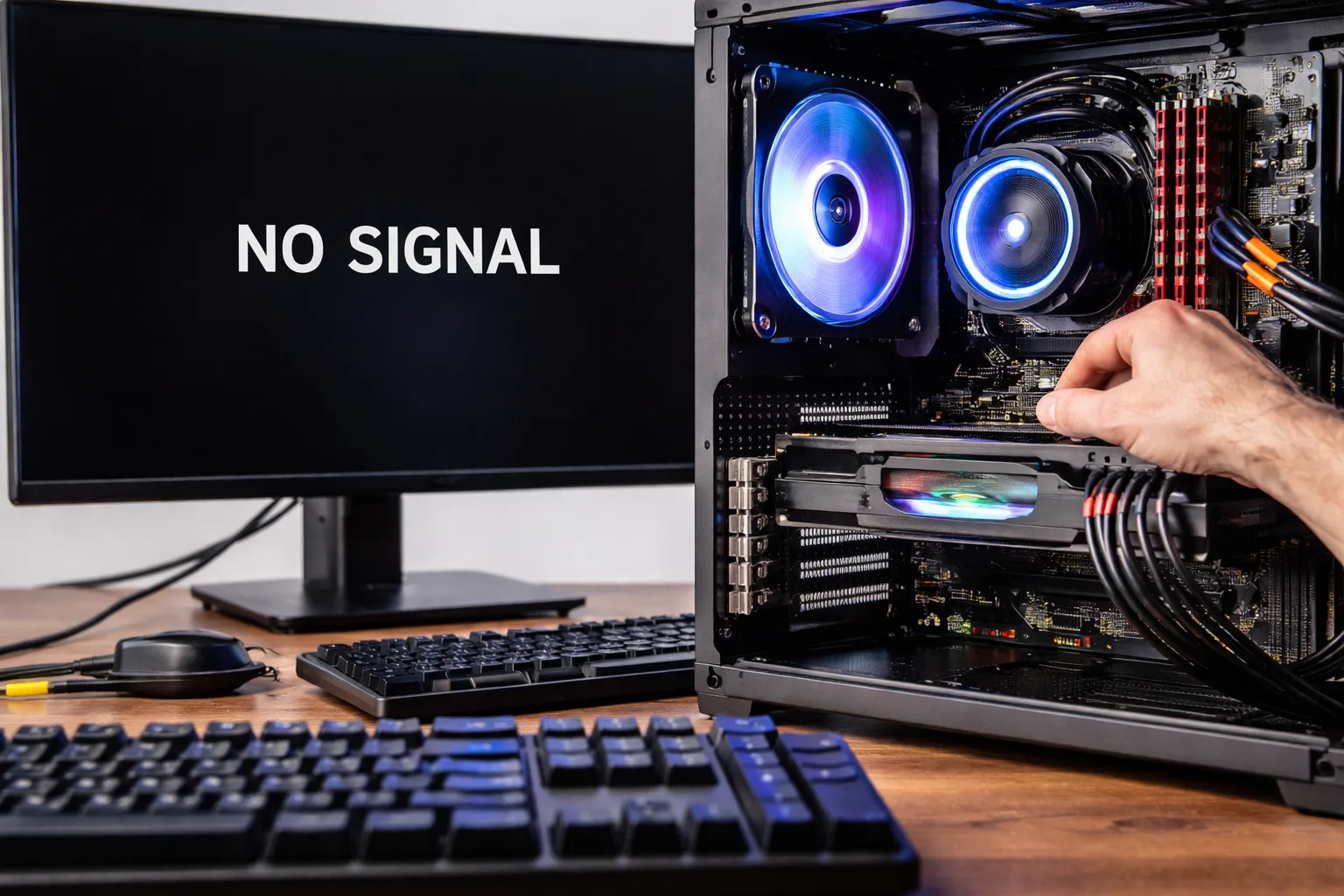
What Does “PC Turns On But No Display” Mean
The issue where a PC turns on but no display appears is one of the most common hardware-related problems. The system powers up, fans spin, LEDs light up, but the monitor remains black with no signal.
This situation indicates that the system is receiving power, but fails during the POST (Power-On Self-Test) or cannot initialize video output.
In most cases, the problem is related to:
- RAM (memory not detected)
- GPU (graphics card issue)
- motherboard faults
- loose or incorrect connections
- BIOS configuration problems
Understanding the root cause requires structured troubleshooting.
Why the PC Has Power but No Display
A computer can power on even if critical components fail. The power supply delivers electricity to the system, but if essential hardware does not initialize correctly, the boot process stops before video output.
This results in:
- no BIOS screen
- no logo
- no signal on monitor
At this stage, the system cannot communicate visually.
Common Causes of No Display on Startup
1. Faulty or Improperly Seated RAM
RAM is the most frequent cause of no display.
If memory is:
- not fully inserted
- defective
- incompatible
the system cannot complete POST.
Symptoms:
- black screen
- beep codes (often 3 beeps)
- system powers on but does nothing
2. Graphics Card Issues (GPU)
If the GPU fails, the system cannot send video signal.
Common scenarios:
- GPU not fully inserted
- power cables disconnected
- GPU failure
- wrong output port used
If you use a dedicated GPU, always verify:
- PCIe connection
- power connectors
- monitor cable plugged into GPU, not motherboard
3. Loose or Incorrect Cable Connections
Simple but common:
- HDMI/DisplayPort cable not fully connected
- faulty cable
- wrong input source on monitor
Always check:
- cable integrity
- monitor input selection
- try another cable or port
4. Monitor Problem
Sometimes the issue is not the PC.
Check:
- monitor power
- input source
- test with another device
5. BIOS or CMOS Issues
Incorrect BIOS settings can block video initialization.
Causes:
- failed overclock
- corrupted BIOS
- wrong GPU priority (iGPU vs dedicated GPU)
6. CPU or Motherboard Failure
If both RAM and GPU are confirmed working, the issue may be deeper.
Possible causes:
- bent CPU pins
- motherboard damage
- faulty VRM or chipset
- dead PCIe slot
7. Power Supply Problems
A weak or failing PSU may power fans but not deliver stable voltage to critical components.
Symptoms:
- system turns on briefly
- no display
- random shutdowns
Step-by-Step Diagnosis Guide
Step 1: Basic External Check
Start simple:
- verify monitor is ON
- check input source
- test another HDMI/DP cable
- try another monitor
Step 2: Reseat RAM
- remove all RAM sticks
- install one stick only
- ensure proper locking
Try different slots.
Step 3: Test Without GPU (if possible)
If your CPU has integrated graphics:
- remove GPU
- connect monitor to motherboard
If display appears → GPU is the issue.
Step 4: Check GPU Connections
- reseat GPU
- reconnect power cables
- try another PCIe slot
Step 5: Clear CMOS
Reset BIOS to default:
- remove CMOS battery (5–10 minutes)
- or use motherboard reset jumper
Step 6: Minimal Boot Configuration
Run system with only:
- motherboard
- CPU
- 1 RAM stick
- GPU (if needed)
Disconnect:
- SSD/HDD
- USB devices
- peripherals
Step 7: Listen for Beep Codes
Beep sounds provide valuable clues:
- 3 beeps → RAM issue
- 5 beeps → CPU issue
- continuous beeps → hardware fault
Advanced Troubleshooting
If the issue persists:
Test RAM in Another System
Confirms whether memory is functional.
Test Another GPU
Quickly isolates graphics-related failures.
Inspect CPU Socket
Look for bent pins or improper mounting.
Check Motherboard for Damage
Burn marks, swollen capacitors, or corrosion.
When the Problem Is Critical
You may be dealing with major hardware failure if:
- no display after all tests
- no beep codes
- system cycles on/off
- multiple components tested OK
Likely causes:
- motherboard failure
- CPU failure
- PSU instability
How to Fix the Issue
Depending on diagnosis:
- reseat or replace RAM
- replace faulty GPU
- repair or replace motherboard
- reset BIOS
- replace PSU
In most real-world cases, the issue is resolved by:
- fixing RAM seating
- replacing defective memory
- correcting GPU connections
Prevention Tips
To avoid this issue:
- clean PC regularly
- avoid mixing incompatible RAM
- ensure proper cable management
- use quality PSU
- avoid unstable overclocking
Conclusion
The PC turns on but no display issue is usually caused by RAM, GPU, or connection problems. While it may seem serious, most cases can be diagnosed and fixed without professional tools.
A structured approach allows you to quickly isolate the problem and avoid unnecessary component replacements.
✍️ Author: Bejenaru Alexandru Ionut – [email protected]

Recommendation: Looking for a professional bi-directional diagnostic tool with full system coverage? Use code DIAGNOZABAM for 10% off.
Transparency note: Affiliate link. Purchasing through it costs you nothing extra. View Thinkcar Deal →