
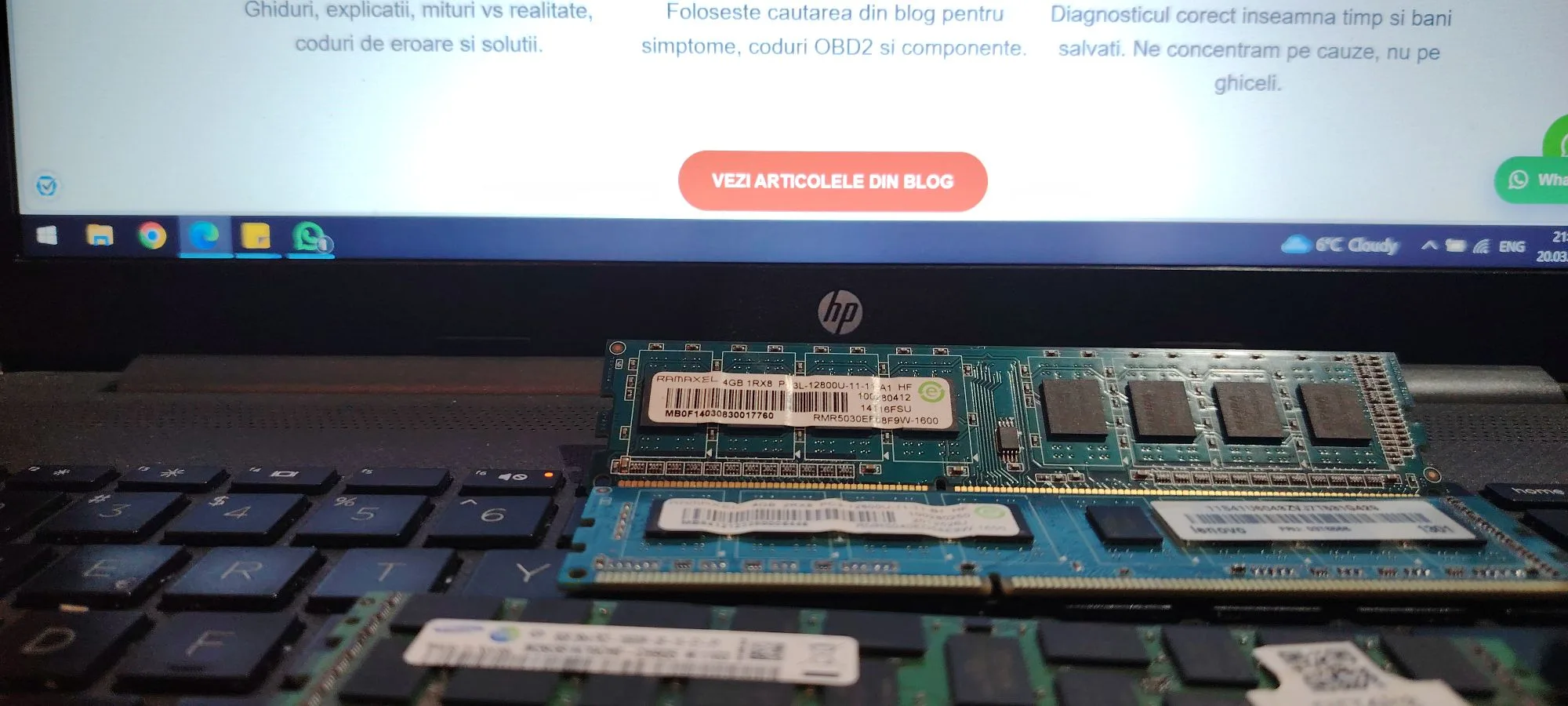
What Does “RAM Not Detected” Mean
The RAM not detected issue occurs when your system fails to recognize installed memory during startup or inside the operating system.
This can result in:
- PC not booting
- black screen
- reduced usable RAM in Windows
- system instability
In many cases, the motherboard cannot initialize memory during POST, which may also trigger beep codes or no display at all.
This is one of the most common hardware problems and is often easy to fix if diagnosed correctly.
Why RAM Is Not Detected
Memory detection happens very early in the boot process. If the system cannot communicate properly with RAM modules, it will either:
- fail to boot
- detect only part of the memory
- behave inconsistently
This usually points to a hardware connection issue or configuration problem.
Common Causes of RAM Not Detected
1. Improperly Seated RAM
The most common cause is incorrect installation.
Even if the module looks inserted, it may not be fully locked.
Symptoms:
- PC turns on but no display
- random detection issues
- intermittent boot
2. Faulty RAM Module
A damaged RAM stick may not be recognized at all.
Causes:
- wear over time
- electrical issues
- overheating
3. Faulty RAM Slot
The motherboard slot itself may be defective.
Signs:
- RAM works in one slot but not another
- system detects memory only in specific slots
4. Dirty or Oxidized Contacts
Dust or oxidation can block proper contact between RAM and slot.
Common in:
- older PCs
- dusty environments
5. Incompatible RAM
Not all memory works with all motherboards.
Issues include:
- unsupported frequency
- incorrect voltage
- mixed RAM kits
6. BIOS Configuration Issues
Incorrect settings can prevent RAM detection.
Examples:
- unstable XMP profile
- manual timing misconfiguration
- corrupted BIOS
7. CPU or Memory Controller Issues
Since the memory controller is integrated in modern CPUs, problems here can also cause RAM detection failures.
Step-by-Step Diagnosis
Step 1: Power Off and Disconnect
- unplug system
- discharge power
- open case
Step 2: Reseat RAM
- remove all RAM
- reinstall firmly
- ensure clips lock properly
Step 3: Test One Stick at a Time
- insert one module
- test each individually
Step 4: Test Different Slots
- move RAM between slots
- identify faulty slot
Step 5: Clean RAM and Slots
- remove dust
- gently clean contacts
Step 6: Clear CMOS
- remove battery
- reset BIOS
Step 7: Check BIOS Detection
Enter BIOS and verify:
- total RAM detected
- memory slots status
How to Fix RAM Not Detected
Depending on the issue:
- reseat RAM correctly
- replace faulty module
- avoid mixing incompatible RAM
- reset BIOS settings
- replace motherboard (if slot is dead)
In most cases, the problem is resolved by:
- fixing RAM seating
- replacing defective memory
Partial RAM Detection (Common Scenario)
Sometimes the system detects only part of installed RAM.
Example:
- 16GB installed → only 8GB usable
Causes:
- faulty stick
- bad slot
- BIOS limitation
- memory reserved for hardware
Signs of a Serious Problem
- no RAM detected at all
- system won’t boot
- no change after testing multiple sticks
- same issue across all slots
This may indicate:
- motherboard failure
- CPU memory controller issue
What NOT to Do
Avoid:
- forcing RAM into slots
- mixing random RAM kits
- ignoring compatibility lists
- running unstable XMP profiles
Conclusion
The RAM not detected issue is usually caused by installation problems, faulty modules, or motherboard-related issues.
The good news is that most cases can be fixed quickly with simple troubleshooting steps.
✍️ Author: Bejenaru Alexandru Ionut – [email protected]
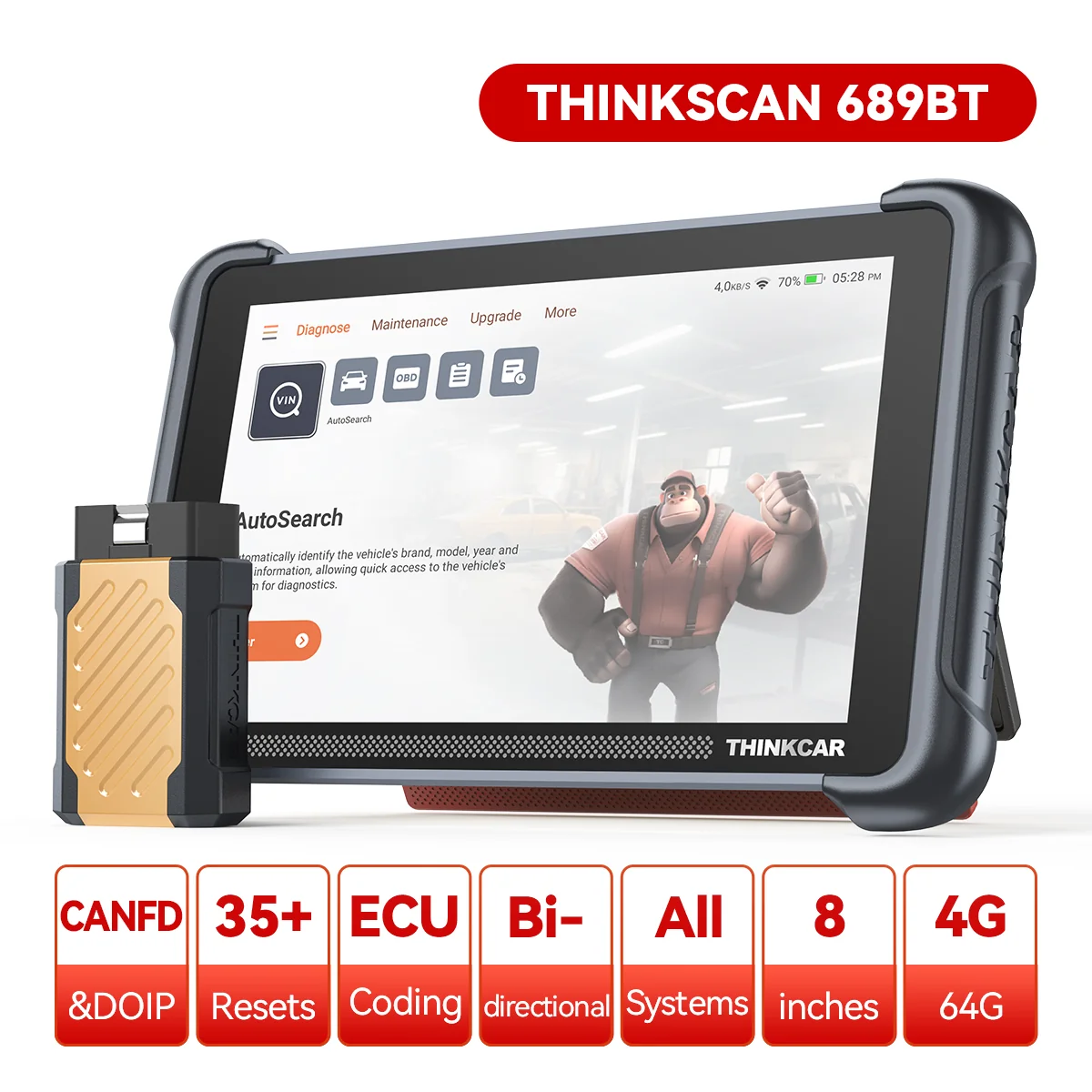
Recommendation: Looking for a professional bi-directional diagnostic tool with full system coverage? Use code DIAGNOZABAM for 10% off.
Transparency note: Affiliate link. Purchasing through it costs you nothing extra. View Thinkcar Deal →