
Computer Randomly Restarts or Shuts Down: Causes and Fixes
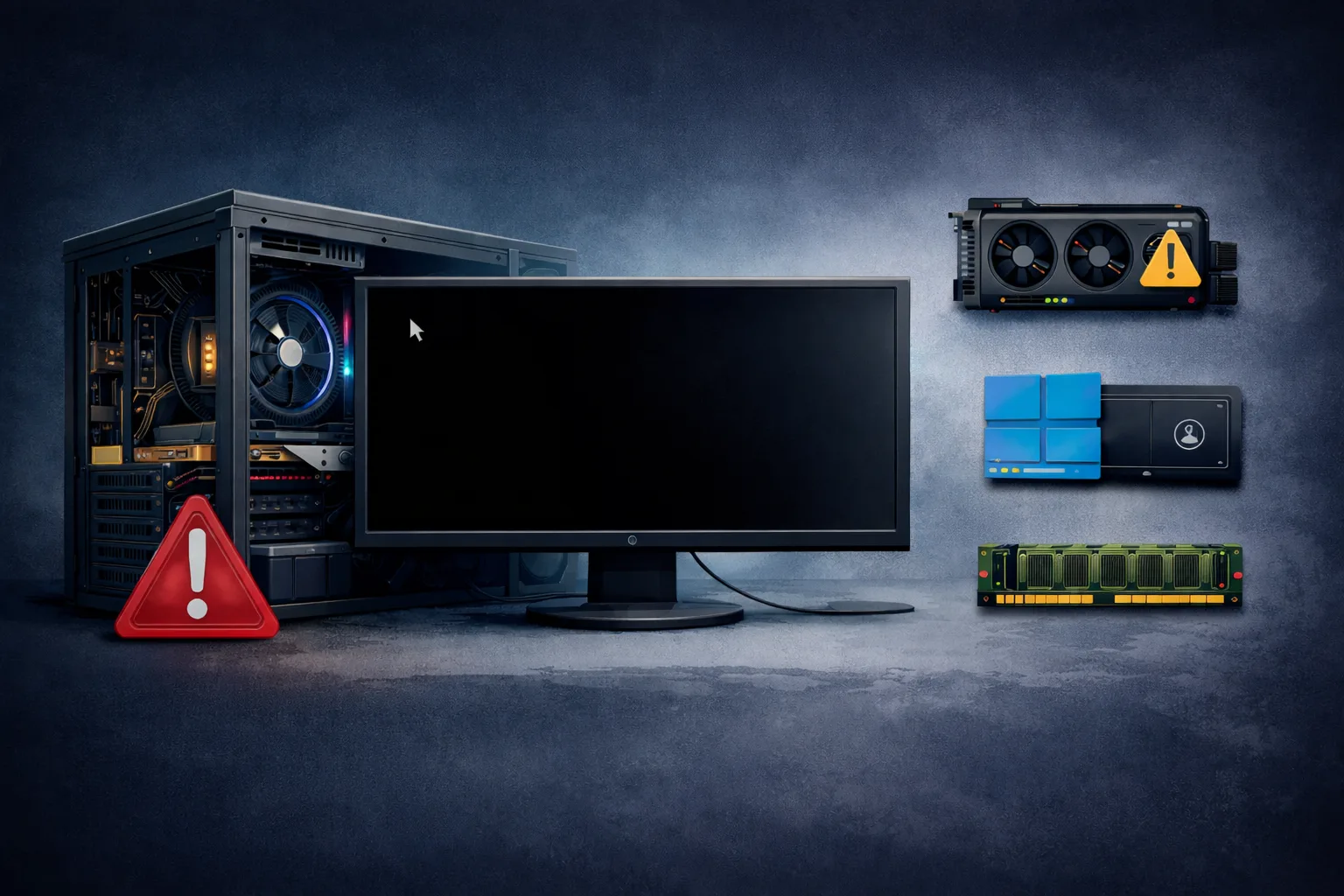
A computer that shuts down mid-task is frustrating. So is one that restarts with no warning. The pattern often seems random. It might happen during a game. It might happen at idle. The causes split into four categories: thermal, power, memory, and software. Working through them in order saves you from replacing parts that were never the problem.
Step 1: Determine the Pattern First
Before testing anything, note exactly when it happens. This alone narrows the list significantly.
- Only under heavy load (gaming, video export, benchmarks): points toward overheating or a failing PSU
- Completely random, including at idle: points toward RAM instability or a Windows-level issue
- Restarts instead of shutting down: often a Windows setting reacting to a detected error
- Shuts down completely with no restart: more consistent with thermal protection or power failure
Check Windows’ own logs before assuming hardware:
- Press Win + X and open Event Viewer.
- Navigate to Windows Logs → System.
- Look for a Kernel-Power Event ID 41 entry near the time of the shutdown. This means the system lost power unexpectedly. It did not shut down through a normal process. This points toward a hardware cause: thermal, PSU, or RAM.
ℹ️ Technical Note: If the log shows a clean shutdown or restart event instead, with no Kernel-Power 41 error, the cause is more likely software or driver-related.
Step 2: Check for Overheating
This is the most common cause of load-triggered shutdowns. It’s also the easiest to confirm.
- Download a monitoring tool that shows CPU and GPU temperatures in real time.
- Reproduce the load that triggers the shutdown.
- Watch the temperature graph as the shutdown approaches.
If temperature climbs to 95-100°C or higher right before the shutdown, thermal protection is doing its job. This isn’t a random failure. It’s the system protecting itself from damage.
Common causes and fixes:
- Dried thermal paste, common after 3-5+ years — reapply fresh paste on the CPU
- Dust buildup in heatsink fins and fans — clean with compressed air
- A failed or slowing fan — check actual spin speed under load, replace if needed
- Blocked airflow — check that intake and exhaust paths aren’t obstructed
- An undersized cooler for the CPU’s actual heat output under sustained load
Step 3: Check the Power Supply
Temperatures might stay normal but the shutdown still happens under load. In that case, the PSU becomes the primary suspect.
- Undersized PSU: check your GPU and CPU’s combined recommended wattage against what’s installed. A PSU near its limit can fail during load spikes.
- Aging PSU: power supplies degrade over years. They can deliver unstable voltage even with no dramatic single failure. A unit that’s 6-8+ years old is a reasonable suspect.
- Bulging capacitors: inspect the PSU and motherboard visually (see our separate guide on identifying bulging capacitors). A failing capacitor anywhere in the power chain can cause load-specific instability.
If you have a known-good PSU of adequate wattage, swap it in temporarily. This is the most direct way to confirm or rule out the PSU.
⚠️ WARNING: Never open a PSU casing yourself. Capacitors inside can retain a dangerous charge even when unplugged. Test with a replacement instead.
Step 4: Test for RAM Instability
RAM errors frequently cause random restarts, including at idle. This is worth ruling out even without an obvious trigger pattern.
- Create a bootable Memtest86 USB drive, or use Windows Memory Diagnostic as a faster alternative.
- Boot from it and run at least one full pass. Overnight is better for a thorough check.
- Any reported errors mean the RAM is unstable.
If errors appear:
- Reset RAM to the motherboard’s default JEDEC speed instead of an XMP or EXPO profile, then retest
- Test one stick at a time to isolate the failing module
- Reseat every module fully before concluding one has failed
Step 5: Rule Out Driver or Windows-Level Causes
Event Viewer might show a clean restart, not Kernel-Power 41. Temperatures, PSU, and RAM might all check out. In that case, the cause is likely software.
- GPU driver crashes: update to the latest stable driver, or roll back if the issue started right after an update
- Windows Update issues: check if the problem began right after a recent update
- Automatic restart on failure: Windows can auto-restart after a Blue Screen instead of showing it. Disable this under System Properties → Advanced → Startup and Recovery → uncheck “Automatically restart”. This lets you actually see the stop code next time
- Third-party antivirus conflicts: temporarily disable third-party security software (not Windows Defender) to check for a conflict
Step 6: When Multiple Categories Overlap
Sometimes more than one factor compounds the problem. A borderline PSU combined with a slightly hot GPU will fail sooner than either issue alone. If you’ve found a partial cause but the problem persists, address every contributing factor. Don’t stop at the first one you find.
Quick Reference Checklist
- Checked Event Viewer for Kernel-Power Event ID 41
- Monitored CPU/GPU temperatures during the triggering activity
- Cleaned dust, checked fan function, reapplied thermal paste if overdue
- Checked PSU wattage against actual system power draw
- Visually inspected PSU and motherboard for bulging capacitors
- Ran Memtest86 for at least one full pass
- Reset RAM to default JEDEC speed if XMP/EXPO was enabled
- Checked GPU driver version and recent Windows Update history
- Disabled automatic restart on failure to capture the actual BSOD stop code
Work through temperature, power, and memory first, in that order. This resolves most random restart and shutdown cases before you need to touch Windows settings or drivers at all.
✍️ Author: Bejenaru Alexandru Ionut – [email protected]
🔗 Internal link: https://diagnozabam.ro/sfaturi

Recommendation: Looking for a professional bi-directional diagnostic tool with full system coverage? Use code DIAGNOZABAM for 10% off.
Transparency note: Affiliate link. Purchasing through it costs you nothing extra. View Thinkcar Deal →
