
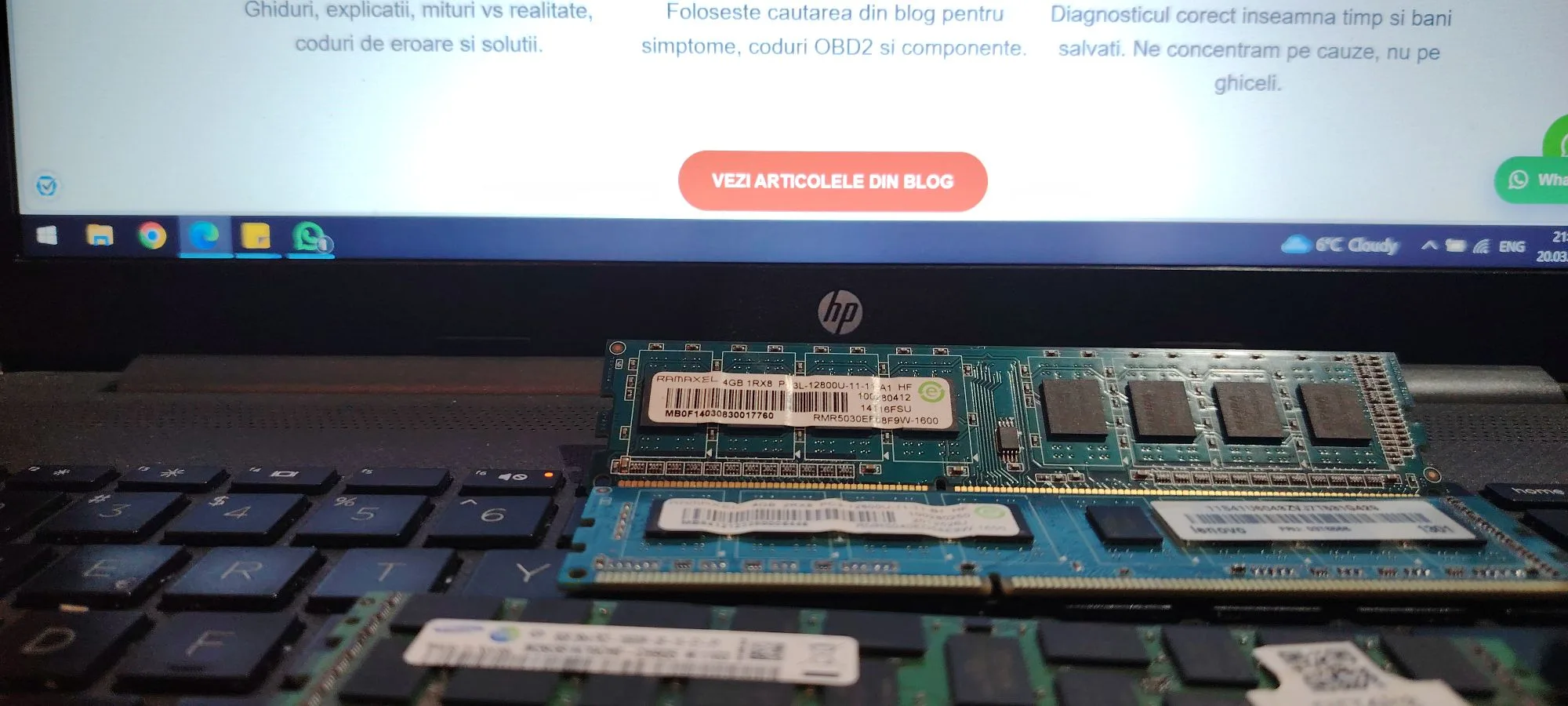
One of the most common hardware issues users encounter is when the system fails to detect installed RAM. This can prevent the PC from booting properly or significantly reduce performance if only part of the memory is recognized.
The problem may occur after installing new RAM, upgrading components, or even suddenly without any changes.
This guide explains why RAM is not detected and how to fix the issue step by step.
What “RAM Not Detected” Means
This issue can appear in several ways:
- PC does not boot at all
- system shows less RAM than installed
- BIOS does not recognize memory
- one RAM slot is not working
- black screen or beep errors
Understanding the exact symptom is important for correct diagnosis.
Most Common Causes
1. Improperly Installed RAM
The most common cause is incorrect installation.
Possible issues:
- RAM not fully inserted
- clips not locked
- module slightly misaligned
Even a small gap can prevent detection.
2. Faulty RAM Module
A defective memory stick may not be detected at all.
Symptoms:
- system boots with one stick but not another
- random crashes
- no POST
3. Dirty or Oxidized Contacts
Dust or oxidation can interrupt the electrical connection.
This often happens in older systems or environments with high humidity.
4. Faulty RAM Slot
The motherboard slot itself may be damaged.
Symptoms:
- one slot not working
- RAM detected only in certain slots
5. BIOS Configuration Issues
Incorrect BIOS settings can limit or block RAM detection.
Examples:
- disabled memory channel
- outdated BIOS
- incorrect memory configuration
6. Incompatible RAM
Not all RAM works with every system.
Problems may include:
- unsupported frequency
- wrong DDR generation
- incompatible timings
7. CPU Memory Controller Issues
Modern CPUs include the memory controller. If damaged, RAM may not be detected correctly.
Step-by-Step Fix
Step 1: Power Off and Disconnect
- turn off PC
- unplug power cable
- discharge residual power
Step 2: Reseat RAM
- remove all RAM modules
- clean contacts
- reinstall firmly until clips lock
Step 3: Test Each Module
- test one stick at a time
- identify faulty module
Step 4: Test Different Slots
- move RAM between slots
- identify defective slot
Step 5: Clean RAM and Slots
- use compressed air
- clean contacts carefully
Step 6: Reset BIOS
- remove CMOS battery
- wait 5–10 minutes
- reinstall
Step 7: Update BIOS
If needed:
- install latest BIOS version
- improve compatibility
Advanced Troubleshooting
Check RAM Compatibility List (QVL)
Motherboard manufacturers provide a list of tested RAM modules.
Test RAM in Another System
This confirms whether the RAM is defective.
Check CPU Socket
Bent pins can affect memory channels.
When the Problem Is Serious
If RAM is still not detected:
- motherboard may be defective
- CPU memory controller may be damaged
Prevention Tips
- handle RAM carefully
- avoid mixing different kits
- clean system regularly
- use compatible components
Conclusion
RAM not detected is usually caused by improper installation, faulty modules, or motherboard issues.
By following a structured troubleshooting process, you can quickly identify and fix the problem.
FAQ – RAM Not Detected
Why is my RAM not showing
Most likely due to improper installation or faulty module.
Can a motherboard cause this
Yes, especially if slots are damaged.
Should I update BIOS
Yes, it can improve compatibility.
Can dust affect RAM
Yes, it can block proper contact.
How to Choose RAM: Complete Guide for Performance – Diagnoza BAM
✍️ Author: Bejenaru Alexandru Ionut – [email protected]
🔗 Internal link: https://diagnozabam.ro/sfaturi
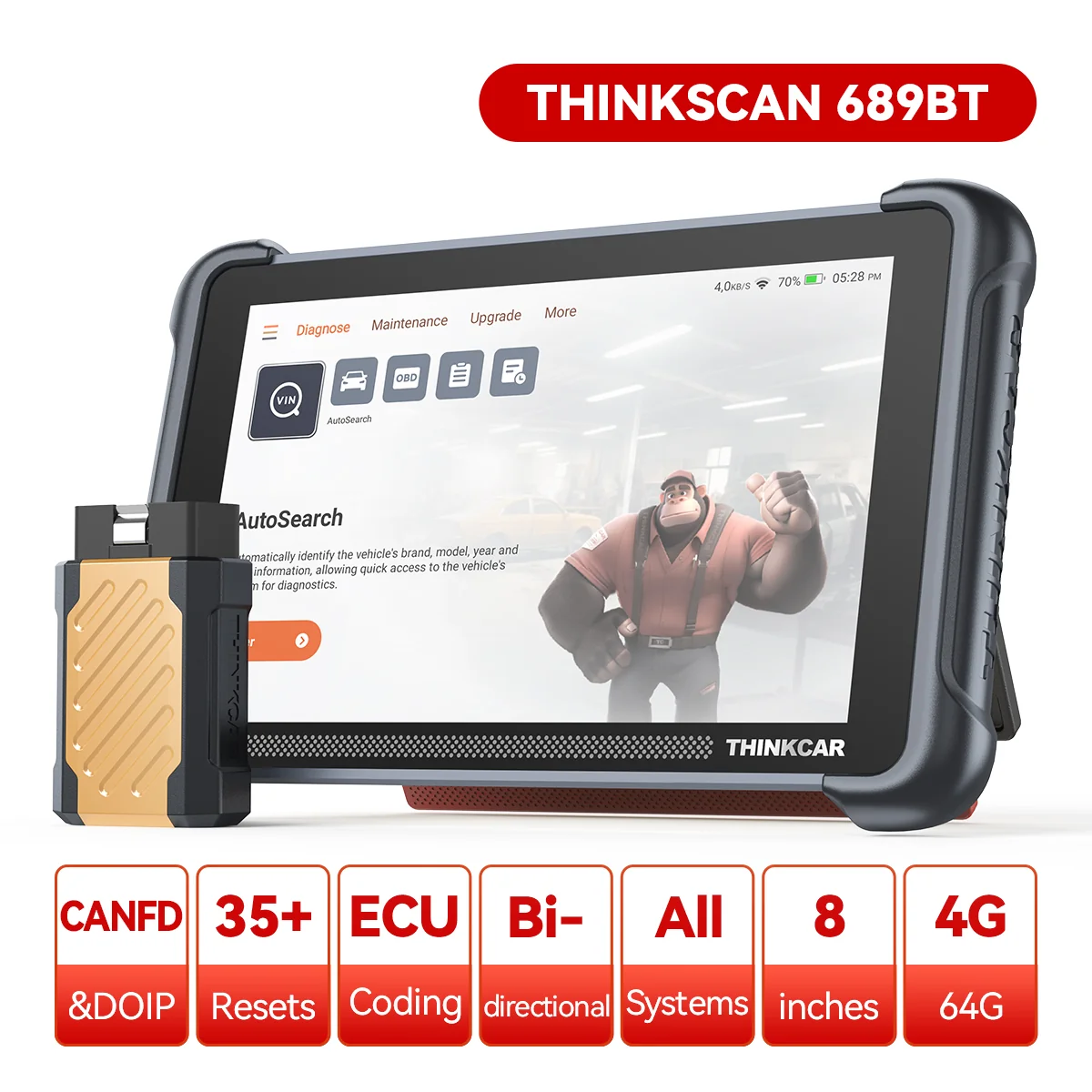
Recommendation: Looking for a professional bi-directional diagnostic tool with full system coverage? Use code DIAGNOZABAM for 10% off.
Transparency note: Affiliate link. Purchasing through it costs you nothing extra. View Thinkcar Deal →