
One of the most common PC issues is when the system appears to power on, but nothing is displayed on the monitor. Fans spin, LEDs light up, yet the screen remains black.
This problem can be confusing because the computer seems to be working, but it fails to complete the startup process.
In most cases, the issue is related to hardware components such as RAM, GPU, or motherboard connections.
This guide explains all possible causes and provides a structured diagnostic process to fix the issue efficiently.
What “PC Turns On But No Display” Means
This situation can present itself in several ways:
-
fans spin but monitor shows no signal
-
black screen with no BIOS logo
-
system appears to run but no POST
-
keyboard and mouse not lighting up
Understanding the exact behavior helps narrow down the cause.
Most Common Causes
RAM Issues
Faulty or improperly seated RAM is the most frequent cause.
Symptoms:
-
no display
-
system stuck before POST
-
possible beep codes
Even a single defective RAM stick can prevent the system from displaying anything.
Graphics Card (GPU) Problems
If the GPU is not working properly, the system will not output video.
Possible issues:
-
GPU not seated correctly
-
damaged GPU
-
power cables not connected
-
faulty PCIe slot
Monitor or Cable Issues
Sometimes the PC is working correctly, but the display path is broken.
Check for:
-
defective HDMI/DisplayPort cable
-
wrong input selected on monitor
-
monitor failure
Motherboard Problems
A faulty motherboard may allow the system to power on but fail during POST.
Common causes:
-
damaged circuits
-
failed components
-
BIOS issues
CPU Issues
Although rare, CPU problems can prevent video output.
Possible causes:
-
bent pins
-
overheating damage
-
incorrect installation
BIOS / CMOS Problems
Incorrect BIOS settings or corrupted firmware can block display output.
This can happen after:
-
BIOS update
-
power failure
-
incorrect configuration
Step-by-Step Diagnosis
Step 1: Check the Monitor and Cable
-
try another monitor
-
switch cable (HDMI / DP / VGA)
-
verify correct input source
This eliminates display-related issues.
Step 2: Reseat the RAM
-
remove all RAM sticks
-
clean contacts
-
insert one stick at a time
-
test different slots
This step solves a large percentage of cases.
Step 3: Check the GPU
-
reseat the graphics card
-
connect power cables properly
-
test with another GPU if possible
-
try integrated graphics (if available)
Step 4: Minimal Boot Configuration
Run the system with only essential components:
-
motherboard
-
CPU
-
one RAM stick
-
PSU
Remove everything else.
Step 5: Reset BIOS (Clear CMOS)
-
remove battery for 5–10 minutes
-
use motherboard jumper
This resets all BIOS settings.
Step 6: Check for Beep Codes or Debug LEDs
If your motherboard supports it:
-
listen for beep codes
-
check diagnostic LEDs
These can indicate the faulty component.
Advanced Troubleshooting
Test Outside the Case
Place the motherboard on a non-conductive surface and test again. This eliminates possible short circuits.
Inspect Hardware Physically
Look for:
-
burnt components
-
damaged connectors
-
swollen capacitors
Check Power Supply Stability
Even if the system turns on, unstable power can prevent proper boot.
When the Problem Is Serious
If none of the steps work, the issue may involve:
-
motherboard failure
-
GPU failure
-
CPU failure
Component replacement may be required.
Prevention Tips
-
clean dust regularly
-
ensure proper cooling
-
use high-quality PSU
-
avoid unstable power sources
Conclusion
A PC that turns on but shows no display is usually caused by RAM or GPU issues.
By following a structured diagnostic process, you can quickly identify and fix the problem without unnecessary replacements.
FAQ – No Display Issue
Why is my PC on but screen black
Most likely RAM or GPU problem.
Can RAM cause no display
Yes, it is one of the most common causes.
Should I replace GPU immediately
No, always test RAM and cables first.
Does resetting BIOS help
Yes, especially after configuration issues.
✍️ Author: Bejenaru Alexandru Ionut – [email protected]
🔗 Internal link: https://diagnozabam.ro/sfaturi
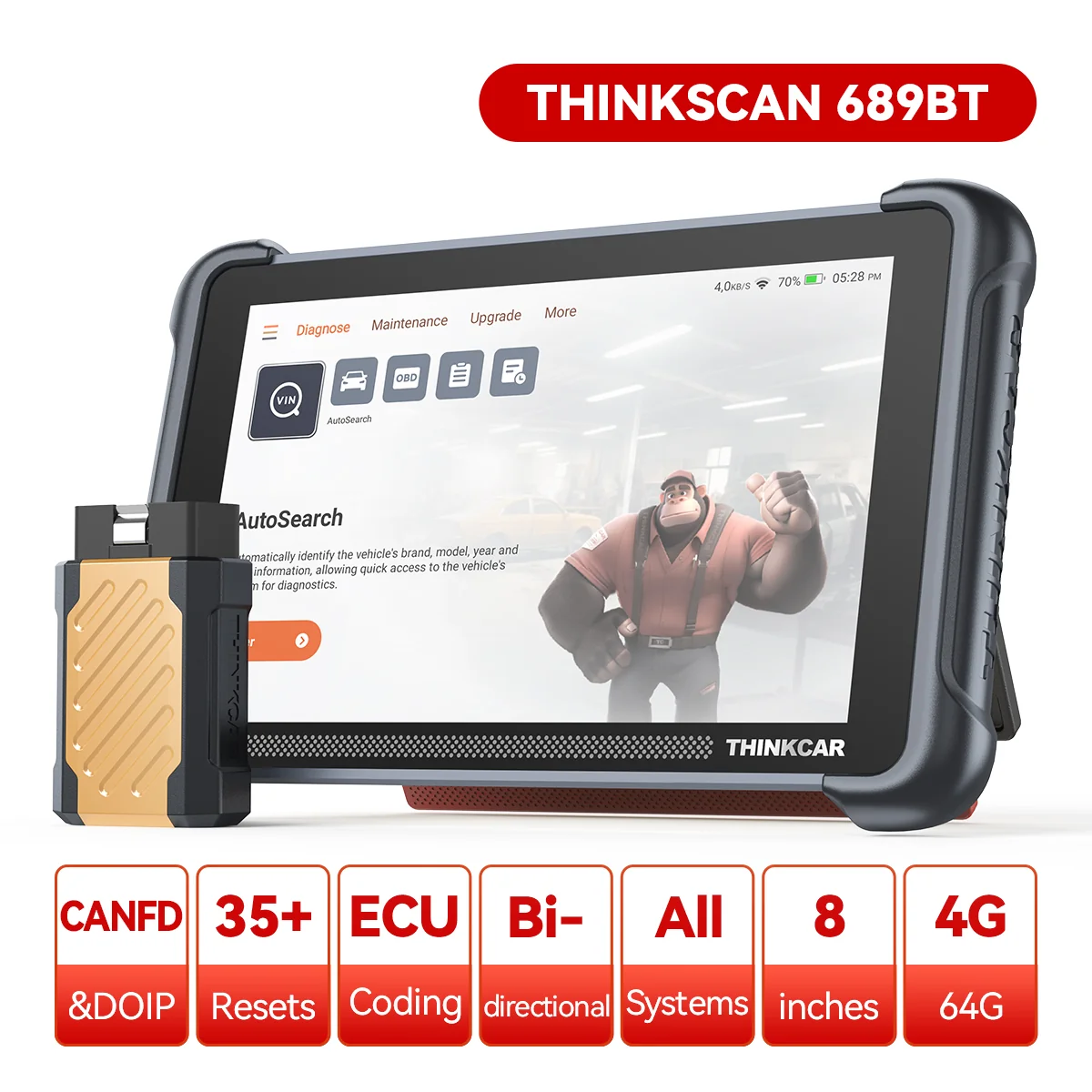
Recommendation: Looking for a professional bi-directional diagnostic tool with full system coverage? Use code DIAGNOZABAM for 10% off.
Transparency note: Affiliate link. Purchasing through it costs you nothing extra. View Thinkcar Deal →