
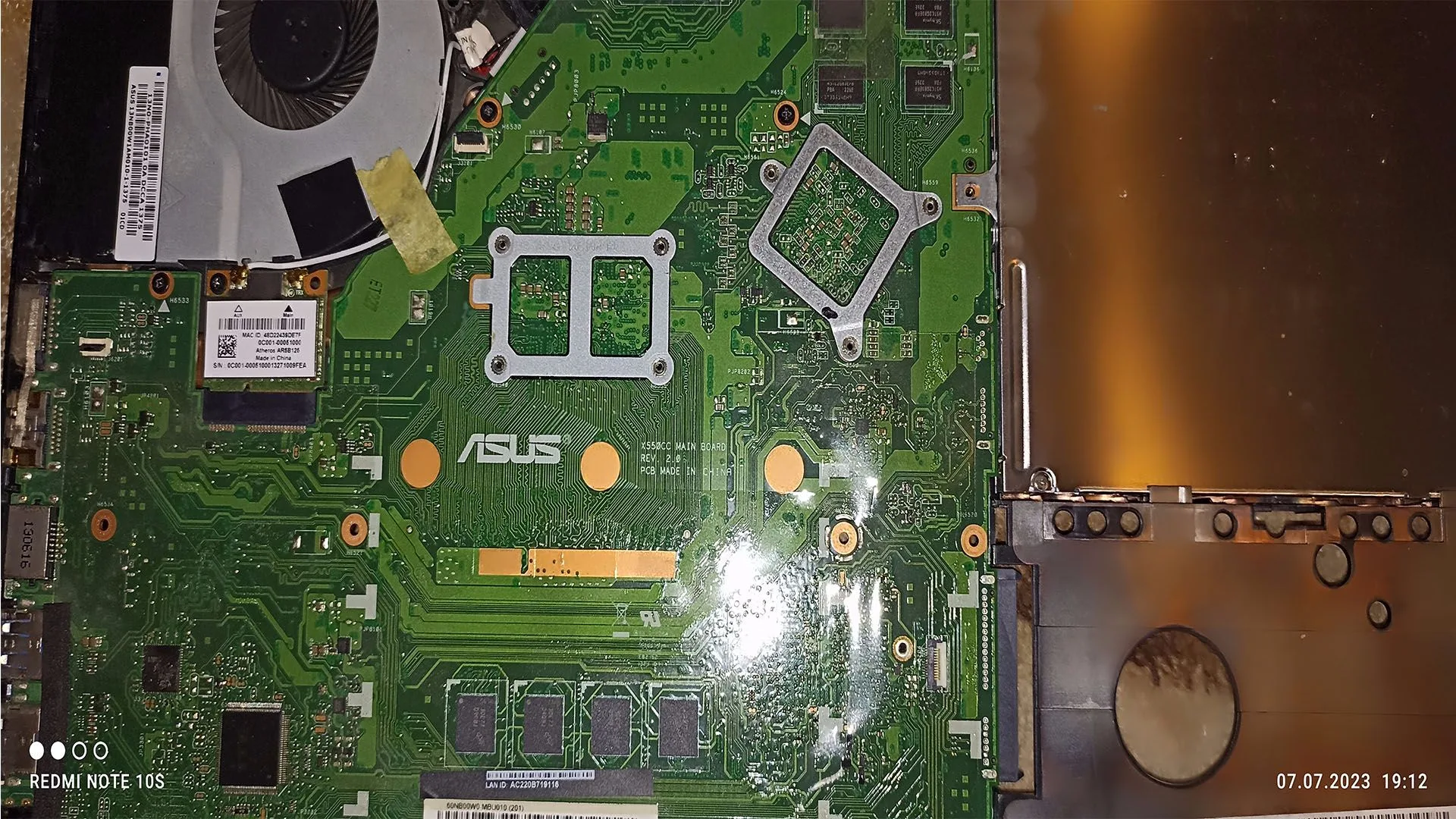
A dead CMOS battery is one of the most overlooked causes of strange PC behavior. Although it is a small and inexpensive component, it plays a critical role in storing BIOS settings and system time.
When the CMOS battery fails, the system may:
- lose date and time
- reset BIOS settings
- fail to boot properly
- display recurring BIOS errors
This guide explains all CMOS battery dead symptoms, how to confirm the issue, and how to fix it correctly.
What Is the CMOS Battery
The CMOS battery is a small coin-cell battery (usually CR2032) located on the motherboard.
Its role is to:
- power the CMOS memory
- retain BIOS settings when the PC is off
- keep system time running
Without it, the motherboard cannot store configuration data.
Most Common Symptoms of a Dead CMOS Battery
1. Incorrect Date and Time
This is the most obvious sign.
After shutdown:
- time resets
- date goes back to default (often year 2000 or similar)
2. BIOS Settings Reset
Every time the PC is powered off:
- boot order resets
- XMP disabled
- custom settings lost
3. BIOS Error Messages
You may see messages like:
- “CMOS Checksum Error”
- “CMOS Battery Failure”
- “Press F1 to continue”
4. PC Boots Only After Multiple Attempts
Some systems struggle to initialize without saved settings.
5. Hardware Not Recognized Correctly
Drives or devices may not initialize properly due to reset BIOS configuration.
6. Random Boot Issues
- system stuck on POST
- boot delays
- inconsistent startup behavior
What Causes CMOS Battery Failure
Normal Wear
Typical lifespan:
- 3 to 5 years
Long Periods Without Power
If the system is unplugged for long periods, the battery drains faster.
Low-Quality Battery
Cheap batteries degrade faster.
Environmental Factors
Heat and humidity can reduce lifespan.
How to Diagnose a Dead CMOS Battery
Step 1: Check System Time
Set correct time → shut down → power on again.
If time resets → battery is likely dead.
Step 2: Save BIOS Settings
Change a BIOS setting → save → restart.
If settings are lost → battery failure confirmed.
Step 3: Visual Inspection
Locate battery on motherboard:
- check for corrosion
- ensure proper seating
Step 4: Measure Voltage (Advanced)
Using multimeter:
- normal voltage: ~3V
- below 2.8V → weak battery
How to Replace CMOS Battery
Step 1: Turn Off and Unplug PC
Always remove power.
Step 2: Locate Battery
Usually near PCIe slots.
Step 3: Remove Old Battery
Use a plastic tool or fingernail.
Step 4: Insert New Battery
- type: CR2032
- correct polarity (+ side up)
Step 5: Reset BIOS Settings
After replacement:
- enter BIOS
- set correct time
- configure boot order
Advanced Issues (Rare)
Corrupted BIOS
If problems persist after replacing battery:
- BIOS may be corrupted
Faulty Motherboard
Very rare, but possible:
- CMOS circuit failure
How Serious Is This Problem
Severity: Low to Medium
- system still works
- but causes instability and inconvenience
However, ignoring it may lead to:
- boot issues
- incorrect system behavior
FAQ
Can I use the PC without a CMOS battery?
Yes, but BIOS settings will reset every time.
Is replacing the CMOS battery difficult?
No. It is one of the easiest hardware fixes.
How much does a CMOS battery cost?
Very cheap, usually a few euros.
Can a dead CMOS battery cause no display?
Rarely, but it can affect boot process in some systems.
Conclusion
The cmos battery dead symptoms are easy to identify and fix, but often ignored.
A simple battery replacement can resolve:
- time reset issues
- BIOS errors
- boot inconsistencies
This is one of the fastest and cheapest fixes in PC diagnostics, yet it can solve multiple confusing problems.
✍️ Author: Bejenaru Alexandru Ionut – [email protected]
🔗 Internal link: https://diagnozabam.ro/sfaturi

Recommendation: Looking for a professional bi-directional diagnostic tool with full system coverage? Use code DIAGNOZABAM for 10% off.
Transparency note: Affiliate link. Purchasing through it costs you nothing extra. View Thinkcar Deal →