
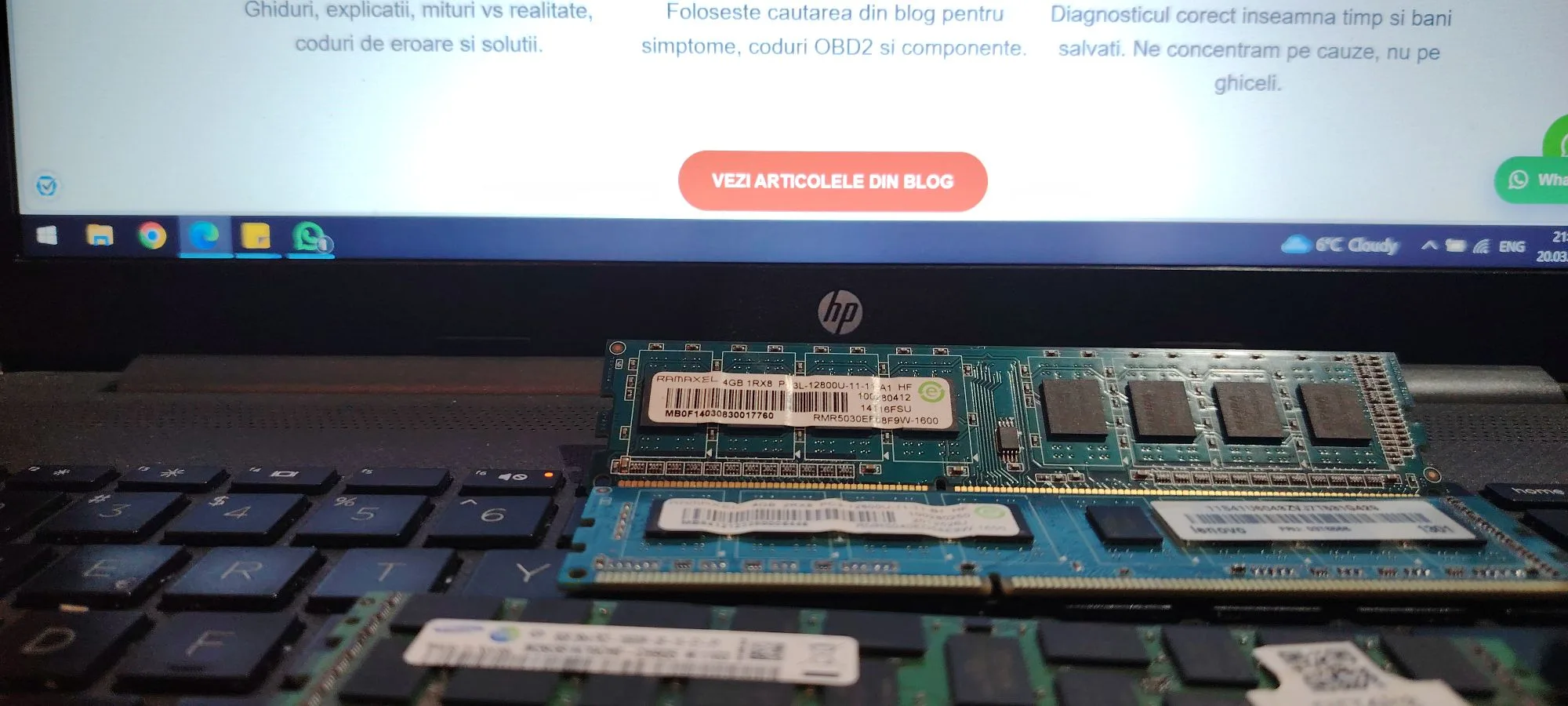
A common and critical PC issue is when the system powers on, but the RAM is not detected or only partially recognized.
This can result in:
- no display
- system not booting
- incorrect RAM capacity shown
- random crashes or instability
The problem can appear:
- after installing new RAM
- after cleaning or upgrading hardware
- suddenly, without warning
This guide explains exactly why RAM is not detected and how to diagnose and fix the issue correctly.
What Does “RAM Not Detected” Mean
If RAM is not detected, it means:
The motherboard cannot properly communicate with one or more memory modules.
This issue occurs at hardware initialization level (POST), before the operating system loads.
Common Scenarios
- PC turns on but no display
- only part of RAM is usable (e.g. 16GB installed, 8GB detected)
- system boots but unstable
- continuous restart loop
Most Common Causes
1. Improperly Seated RAM
This is the most frequent cause.
RAM must be:
- fully inserted
- locked on both sides
Even slight misalignment causes detection failure.
2. Faulty RAM Module
A defective stick can:
- prevent system from booting
- not be detected at all
3. Dirty or Oxidized Contacts
Dust or oxidation can block signal.
4. Faulty RAM Slot (Motherboard)
If a slot is damaged:
- RAM in that slot will not be detected
5. Incompatible RAM
Problems may occur with:
- unsupported frequency
- different brands mixed
- different timings
6. BIOS Configuration Issues
Examples:
- XMP instability
- outdated BIOS
- incorrect voltage
7. CPU Socket or Pin Issues
Memory controller is inside CPU.
Bent pins can cause:
- missing memory channels
- partial detection
8. Dual Channel Issues
If one channel fails:
- only half of RAM is detected
Step-by-Step Diagnosis
Step 1: Power Off and Reseat RAM
- remove all RAM sticks
- reinstall one stick
- ensure proper locking
Step 2: Test One Stick at a Time
- test each module individually
- identify faulty stick
Step 3: Test Different Slots
- move RAM between slots
- identify faulty slot
Step 4: Clean RAM Contacts
- use isopropyl alcohol or soft eraser
Step 5: Reset BIOS
- remove CMOS battery
- reset settings
Step 6: Disable XMP
- run RAM at default speed
Step 7: Update BIOS
Important for compatibility.
Step 8: Inspect CPU Socket
- check for bent pins
- reseat CPU if necessary
Advanced Causes
Memory Channel Failure
Caused by:
- CPU damage
- motherboard issue
IMC (Integrated Memory Controller) Failure
Rare but serious.
Overclock Instability
High frequency RAM can cause detection issues.
How to Fix the Issue
- reseat RAM correctly
- replace faulty RAM module
- use compatible RAM kit
- repair or avoid faulty slot
- update BIOS
- fix CPU socket issues
How Serious Is This Problem
Severity: Medium to High
- system may not boot
- instability possible
- may indicate hardware failure
FAQ
Why is only half of my RAM detected?
Usually due to:
- faulty slot
- CPU pin issue
- memory channel failure
Can bad RAM cause no display?
Yes. Faulty RAM often causes no POST.
Can BIOS update fix RAM detection?
Yes, especially for newer RAM kits.
Should I mix different RAM sticks?
Not recommended. It can cause instability.
Conclusion
The ram not detected issue is usually caused by improper installation, faulty hardware or compatibility problems.
By following this guide, you can determine whether the issue is:
- simple (reseating RAM)
- moderate (BIOS or compatibility)
- serious (CPU or motherboard fault)
Proper diagnosis ensures stability and prevents further hardware issues.
✍️ Author: Bejenaru Alexandru Ionut – [email protected]
🔗 Internal link: https://diagnozabam.ro/sfaturi
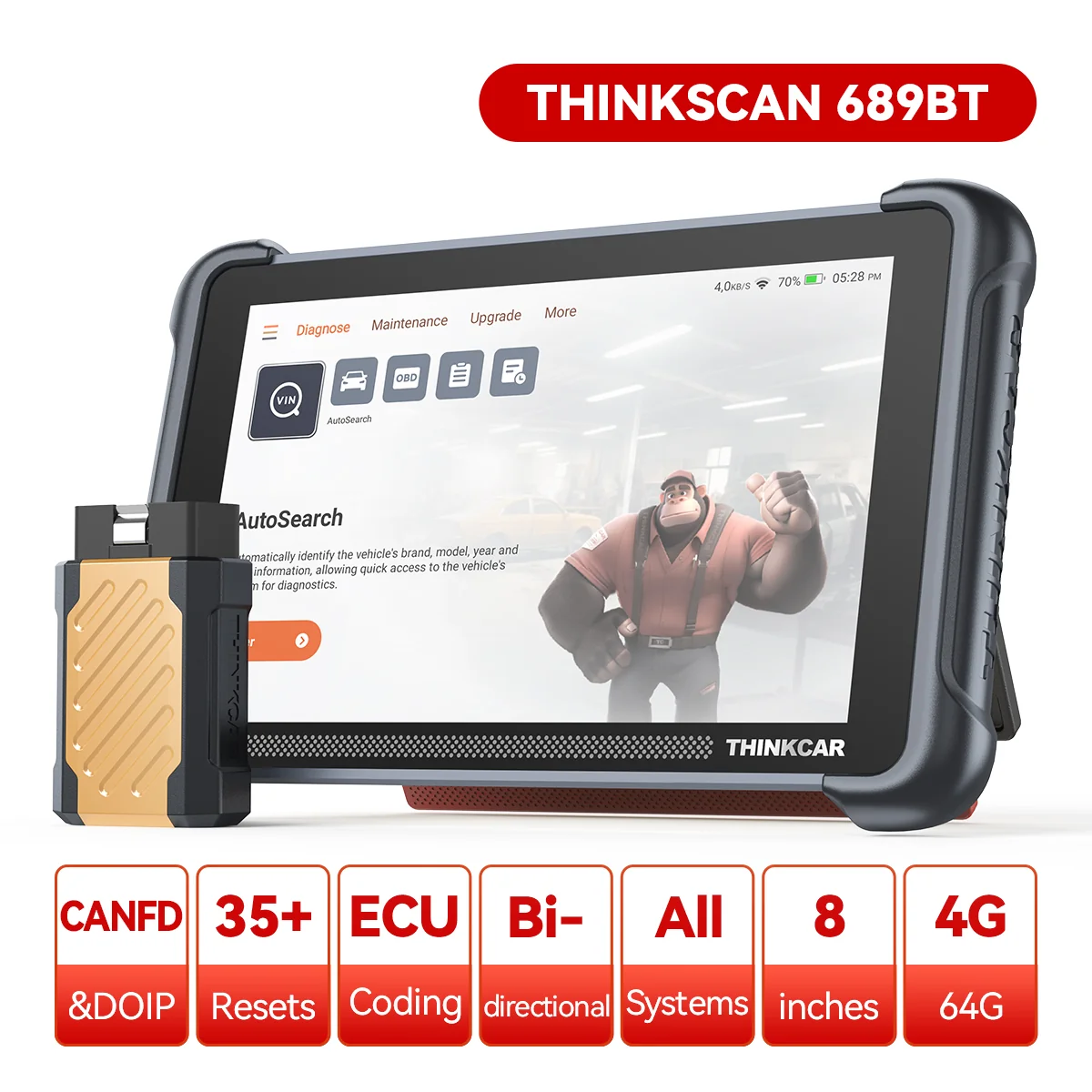
Recommendation: Looking for a professional bi-directional diagnostic tool with full system coverage? Use code DIAGNOZABAM for 10% off.
Transparency note: Affiliate link. Purchasing through it costs you nothing extra. View Thinkcar Deal →