
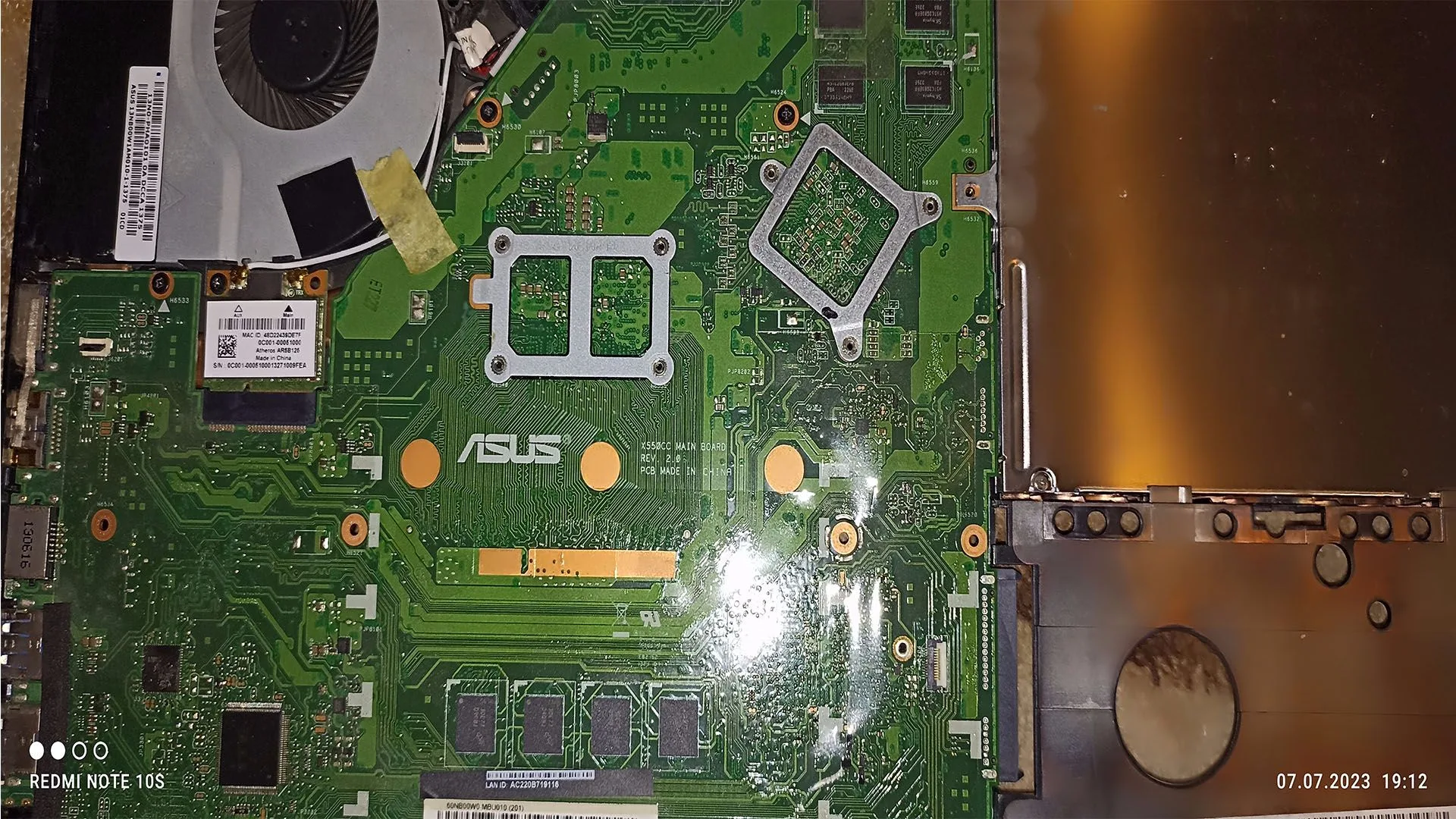
A very common and critical PC issue is when the SSD is not detected in BIOS. Without detection at BIOS level, the operating system cannot load, making the system unusable.
This problem can appear:
- after installing a new SSD
- after BIOS reset
- after hardware upgrade
- suddenly, without warning
This guide explains exactly why an SSD is not detected in BIOS and how to fix it step-by-step.
What Does “SSD Not Detected in BIOS” Mean
If an SSD does not appear in BIOS, it means:
The motherboard cannot communicate with the storage device.
This happens before Windows or any OS loads, so the issue is always:
- hardware-related
- BIOS configuration
- connection problem
Types of SSDs (Important for Diagnosis)
Understanding the type of SSD is critical:
SATA SSD
- uses SATA cable + power cable
- appears in BIOS under SATA devices
NVMe SSD (M.2)
- connects directly to motherboard
- uses PCIe lanes
- appears under NVMe or storage section
Different causes apply depending on the type.
Most Common Causes
1. Loose or Faulty Connections (SATA SSD)
For SATA SSD:
- loose SATA cable
- damaged cable
- no power from PSU
This is the most common issue.
2. Incorrect BIOS Settings
Common problems:
- SATA mode disabled
- RAID/AHCI misconfiguration
- NVMe disabled (rare but possible)
3. SSD Not Properly Installed (NVMe)
NVMe drives must be:
- fully inserted
- properly screwed down
Even slight misalignment causes detection failure.
4. M.2 Slot Sharing Bandwidth
Some motherboards disable SATA ports when M.2 is used.
Example:
- using M.2 disables SATA port 5/6
Result:
- SSD appears “missing”
5. Faulty SSD
SSD may fail completely due to:
- NAND wear
- controller failure
- power surge
6. Outdated BIOS
Older BIOS versions may not support newer SSDs.
7. Dead SATA Port or M.2 Slot
Motherboard ports can fail.
8. Power Supply Issues
SSD not receiving power = not detected.
Step-by-Step Diagnosis
Step 1: Check BIOS Storage List
Enter BIOS and look under:
- SATA configuration
- NVMe configuration
If SSD is missing → continue.
Step 2: Check Physical Connections (SATA)
- reconnect SATA cable
- try different SATA port
- try different power cable
Step 3: Reinstall NVMe SSD
- remove SSD
- reinsert at correct angle
- secure with screw
Step 4: Reset BIOS
- remove CMOS battery
- reset settings
Step 5: Change SATA Mode
Switch between:
- AHCI
- RAID
(Some systems detect SSD only in correct mode)
Step 6: Update BIOS
Check motherboard manufacturer site and update BIOS.
Step 7: Test SSD on Another System
- if detected → motherboard issue
- if not → SSD is defective
Step 8: Check Slot Limitations
Consult motherboard manual:
- M.2 may disable SATA ports
Advanced Causes
NVMe PCIe Lane Conflict
Some GPUs or devices may reduce available PCIe lanes.
Secure Boot / CSM Settings
Improper settings may hide drives.
Firmware Corruption
Rare but possible SSD firmware failure.
How to Fix the Issue
- replace SATA cable
- reconnect SSD
- enable correct BIOS settings
- update BIOS
- replace SSD (if faulty)
- use different port or slot
How Serious Is This Problem
Severity: High
- system cannot boot
- data may be inaccessible
- may indicate hardware failure
Immediate action is required.
FAQ
Why is my SSD not showing in BIOS but works before?
Possible causes:
- cable failure
- BIOS reset
- SSD failure
Can a dead SSD not appear at all?
Yes. A completely failed SSD will not be detected.
Does NVMe need drivers in BIOS?
No. Detection should happen without drivers.
Can BIOS update fix SSD detection?
Yes, especially for newer NVMe drives.
Conclusion
The ssd not detected in bios issue is usually caused by connection problems, BIOS configuration, or hardware failure.
By following this structured guide, you can quickly identify whether the issue is:
- simple (cable or settings)
- moderate (BIOS or slot conflict)
- serious (SSD or motherboard failure)
Correct diagnosis is essential to avoid unnecessary replacement and data loss.
✍️ Author: Bejenaru Alexandru Ionut – [email protected]
🔗 Internal link: https://diagnozabam.ro/sfaturi

Recommendation: Looking for a professional bi-directional diagnostic tool with full system coverage? Use code DIAGNOZABAM for 10% off.
Transparency note: Affiliate link. Purchasing through it costs you nothing extra. View Thinkcar Deal →